Setting the default domain for vCenter SSO
vCenter Single Sign by default requires the user to specify the domain when they pass their username during authenticate with vCenter.
For Example : MYDOMAIN\USER1 or USER1@MYDOMAIN.COM
You can eliminate the need to insert the domain in the user name by following the following steps.
NOTE - This has to be done in the WebClient. These options are not available in the desktop client.
- Log in to the vSphere Web Client as administrator@vsphere.local or as another user with vCenter Single Sign-On administrator privileges.
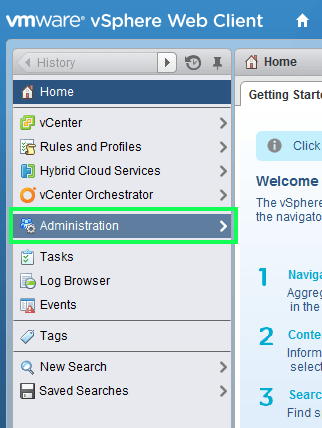
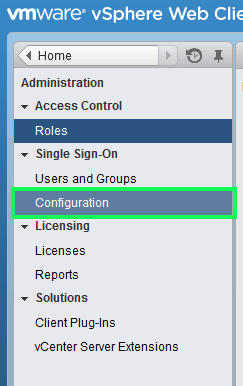
- Browse to Administration > Single Sign-On > Configuration.
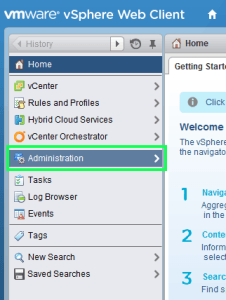
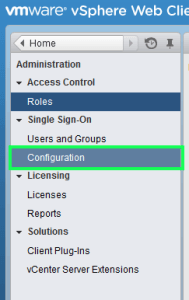
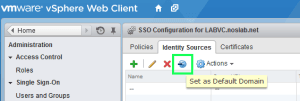
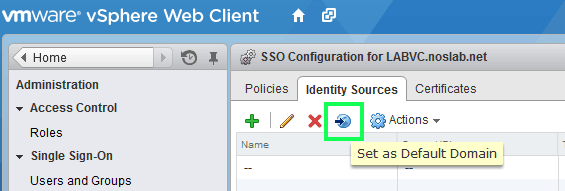
- On the Identity Sources tab, select an identity source and click the Set as Default Domain icon.
Tags:
0 Comments
Leave a Comment